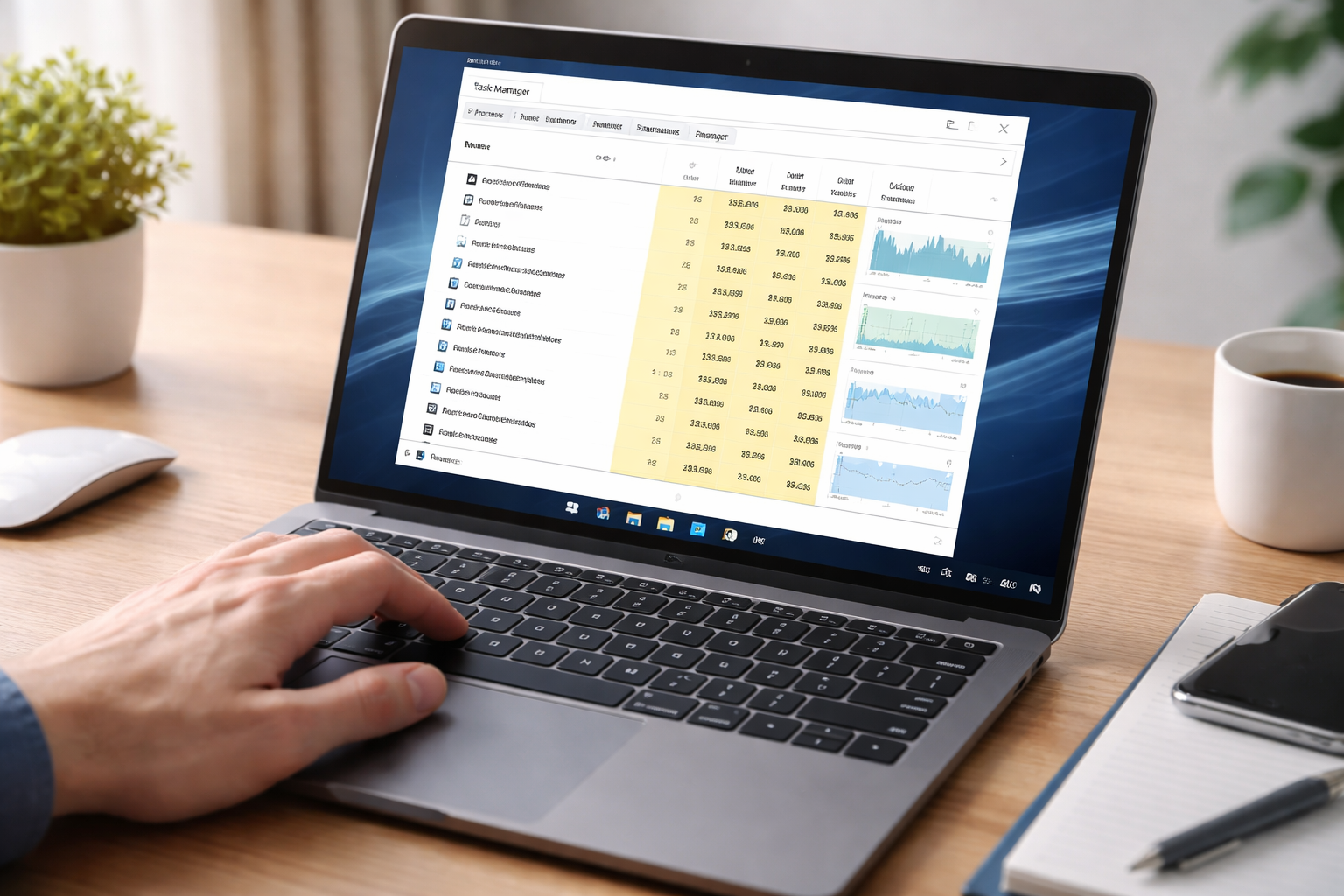
How to Open Task Manager is one of the most common questions Windows users ask when troubleshooting slow computers, frozen apps, or high CPU usage. The Windows Task Manager is a built-in tool that helps you monitor system performance, close unresponsive programs, and manage startup applications.
If your computer suddenly freezes or an application stops responding, knowing how to open Task Manager quickly can save you time and frustration. Whether you’re using Windows 10 or Windows 11, there are multiple shortcuts and methods available.
In this guide, you will learn how to open Task Manager using seven quick and powerful ways. You will also discover useful tips, advanced features, and troubleshooting techniques to help you manage your system more efficiently.
What is Windows Task Manager?
Before learning how to open Task Manager, it’s important to understand what it does. Task Manager is a system monitoring utility included in Microsoft Windows that provides information about running applications, processes, system performance, and network activity.
It allows users to:
- View running applications and background processes
- End unresponsive or frozen programs
- Monitor CPU, memory, disk, and GPU usage
- Manage startup programs
- View system performance statistics
- Check user sessions and services
According to the official Microsoft documentation, Task Manager is designed to help users analyze system performance and identify resource-heavy processes. You can learn more through the Microsoft support page.
Learning how to open Task Manager quickly ensures you can access these tools whenever your system needs troubleshooting.
Why Learning How to Open Task Manager Is Important
Many users only search for how to open Task Manager when their computer freezes. However, Task Manager is also useful for everyday system management.
Here are some reasons why it’s helpful:
- Diagnose slow computer performance
- Close frozen applications instantly
- Identify malware-like behavior
- Disable unnecessary startup apps
- Monitor hardware resource usage
- Improve system efficiency
Knowing several methods for how to open Task Manager ensures you always have access to it—even when some keyboard shortcuts stop working.
How to Open Task Manager: 7 Quick and Powerful Ways
Below are seven reliable methods that show how to open Task Manager in Windows.
1. Use the Ctrl + Shift + Esc Keyboard Shortcut
The fastest method for how to open Task Manager is the direct keyboard shortcut.
Steps:
- Press Ctrl + Shift + Esc simultaneously
- Task Manager opens instantly
This shortcut is often the preferred method for power users because it bypasses additional menus.
Advantages:
- Fastest method available
- Works in most situations
- Requires no navigation
If you frequently troubleshoot system issues, this shortcut will likely become your go-to option.
2. Use Ctrl + Alt + Delete
Another well-known method for how to open Task Manager involves the Windows security screen.
Steps:
- Press Ctrl + Alt + Delete
- A security screen will appear
- Click Task Manager
This option is especially useful when your system becomes unresponsive.
Benefits:
- Works even when some apps freeze
- Provides access to additional security options
- Reliable across Windows versions
Microsoft documents this method in their Windows keyboard shortcuts guide.
- Right-Click the Taskbar
A very simple method for how to open Task Manager is through the Windows taskbar.
Steps:
- Right-click the taskbar at the bottom of the screen
- Select Task Manager
This method works well if your keyboard shortcuts are not functioning.
Advantages:
- Simple and visual
- Easy for beginners
- No keyboard required
4. Use the Run Command
The Run dialog provides another quick option for how to open Task Manager.
Steps:
- Press Windows Key + R
- Type taskmgr
- Press Enter
This command launches Task Manager immediately.
Benefits:
- Quick command access
- Useful for advanced users
- Works on Windows 10 and Windows 11
You can explore additional Windows run commands
- Use Windows Search
Another easy way to learn how to open Task Manager is through the Windows search feature.
Steps:
- Click the Windows search icon
- Type Task Manager
- Select the application from results
Advantages:
- Beginner friendly
- Works even without shortcuts
- Easy to remember
You can also pin Task Manager to your taskbar from this search result for faster access.
6. Open Task Manager Using Command Prompt or PowerShell
Advanced users often open tools using command line utilities.
Steps:
- Open Command Prompt or PowerShell
- Type taskmgr
- Press Enter
This command launches Task Manager instantly.
This method is useful when performing system administration tasks.
You can read more about Windows command line tools.
7. Open Task Manager from File Explorer
The final method for how to open Task Manager uses Windows File Explorer.
Steps:
- Open File Explorer
- Navigate to:
C:\Windows\System32
- Find Taskmgr.exe
- Double-click the file
Although this method is slower, it works if other shortcuts are unavailable.
Key Features Inside Task Manager
After learning how to open Task Manager, understanding its features can help you manage your computer more effectively.
Processes Tab
The Processes tab displays all currently running programs and background processes.
You can view:
- CPU usage
- Memory usage
- Disk activity
- Network usage
If an app stops responding, you can select it and click End Task.
Performance Tab
The Performance tab provides real-time hardware statistics.
It shows:
- CPU usage graphs
- RAM usage
- Disk activity
- GPU performance
- Network utilization
This helps diagnose system slowdowns.
Startup Tab
The Startup tab allows you to manage programs that launch when your computer boots.
Disabling unnecessary startup apps can improve boot time.
Users Tab
This tab shows active user accounts currently logged into the system.
Services Tab
The Services tab allows you to monitor Windows services running in the background.
Understanding these features makes knowing how to open Task Manager even more useful.
How Task Manager Helps Improve Computer Performance
Once you understand how to open Task Manager, you can use it to optimize system performance.
Some useful actions include:
- Ending memory-heavy processes
- Identifying CPU spikes
- Disabling startup programs
- Monitoring background apps
For example, if your computer suddenly slows down, Task Manager can reveal which application is consuming excessive resources.
This allows you to take immediate action.
Common Problems Task Manager Can Solve
Task Manager is often used to fix common Windows issues.
Here are some examples.
Closing Frozen Programs
If an application stops responding, Task Manager allows you to force close it.
Steps:
- Open Task Manager
- Select the frozen application
- Click End Task
Diagnosing High CPU Usage
If your CPU usage reaches 100%, Task Manager can identify which process is causing the issue.
Managing Startup Apps
Too many startup applications can slow your system boot time.
Task Manager allows you to disable unnecessary apps easily.
Identifying Suspicious Processes
Sometimes malware disguises itself as legitimate processes. Task Manager can help identify unusual activity.
If you suspect malware, consider using security tools recommended by organizations like the
Cyber Security and Infrastructure Security Agency.
Tips for Using Task Manager Efficiently
Learning how to open Task Manager is just the first step. Here are tips to use it effectively.
- Sort processes by CPU or memory usage
- Disable high-impact startup programs
- Use the performance tab to monitor system health
- Avoid ending critical system processes
- Regularly review background processes
These habits help maintain system stability.
Using Task Manager for Troubleshooting
Task Manager is widely used by IT professionals for diagnosing system problems.
Common troubleshooting tasks include:
- Checking disk activity during slow performance
- Identifying programs consuming large amounts of RAM
- Restarting Windows Explorer when the desktop freezes
To restart Windows Explorer:
- Open Task Manager
- Locate Windows Explorer
- Click Restart
This often resolves desktop or taskbar issues.
Internal Resources for Career Growth
If you’re interested in technology careers or learning more about digital skills, exploring professional opportunities online can be beneficial.
Platforms like VAME PH
provide insights into digital services, technology solutions, and industry trends.
If you’re looking for employment opportunities in the tech and digital marketing field, you can explore openings through VAME PH CAREER
These resources can help individuals build careers related to technology, digital services, and online industries.
Frequently Asked Questions
What is the fastest way to open Task Manager?
The fastest method is pressing Ctrl + Shift + Esc. This shortcut opens Task Manager instantly.
Can Task Manager help fix a frozen computer?
Yes. If an application stops responding, you can open Task Manager and end the process to restore system responsiveness.
Does Task Manager work on Windows 11?
Yes. All the methods for how to open Task Manager work on Windows 10 and Windows 11.
Why can’t I open Task Manager?
Possible reasons include:
- System restrictions by administrators
- Malware interference
- Corrupted system files
Running a system scan or updating Windows may fix the issue.
Is Task Manager safe to use?
Yes. Task Manager is a built-in Windows tool designed to monitor and manage system processes safely.
However, users should avoid ending critical system processes.
Can Task Manager improve PC performance?
Indirectly, yes. It allows you to identify and close resource-heavy programs that slow down your system.
Final Thoughts
Understanding how to open Task Manager is an essential skill for every Windows user. Whether you are troubleshooting a frozen program, analyzing system performance, or managing startup applications, Task Manager provides powerful tools to keep your computer running smoothly.
With the seven methods covered in this guide, you will always know how to open Task Manager quickly, no matter the situation.
By regularly using Task Manager to monitor processes and manage system resources, you can maintain better performance and gain greater control over your Windows system.